Khryz
Khryz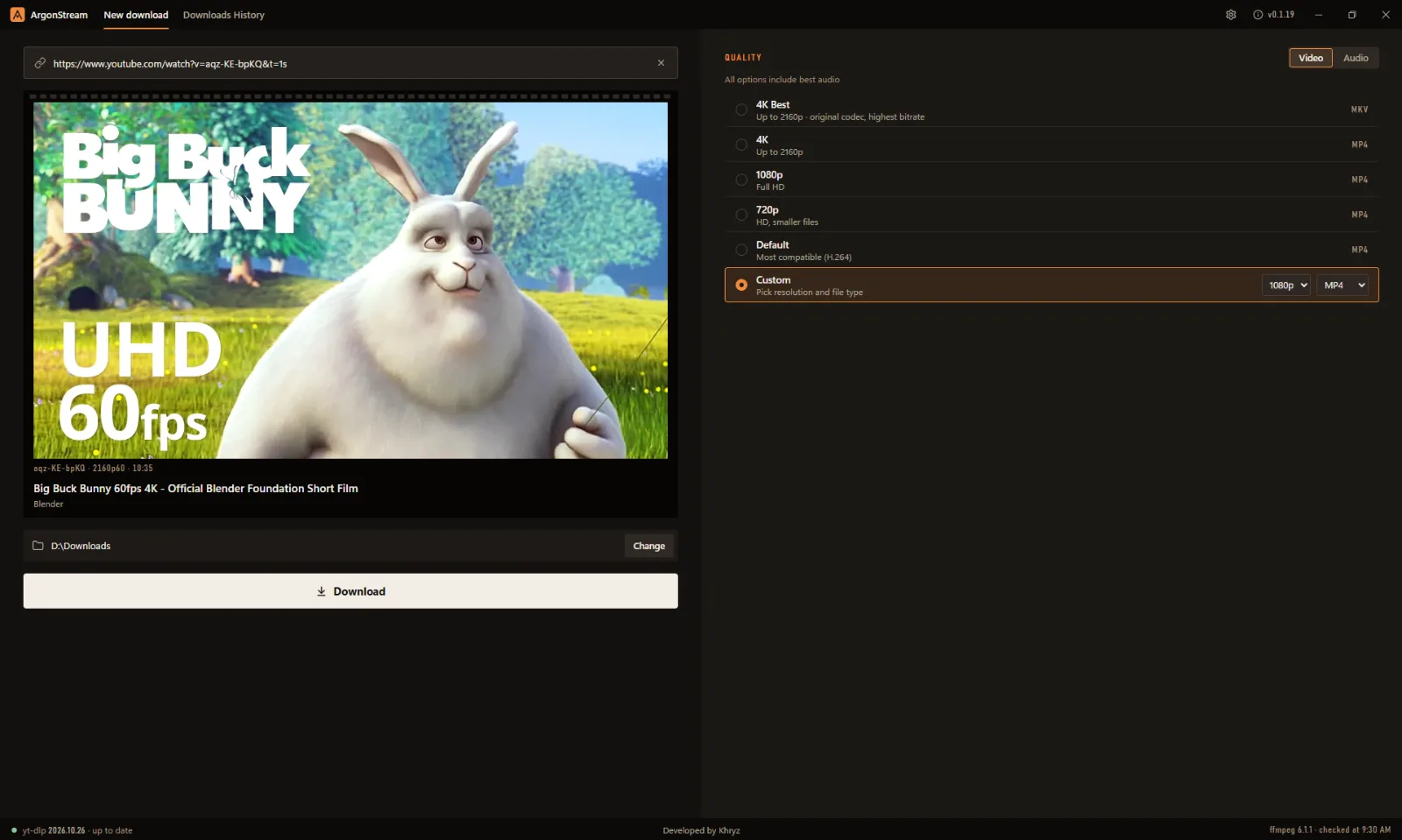

ArgonStream
ArgonStream is a small Windows app that saves YouTube videos and audio to your PC, from 4K video to MP3. Written in Rust
Journey
README
ArgonStream
A small Windows and Linux app for downloading YouTube videos and audio on top of yt-dlp, built with Rust and Tauri 2: a Rust backend runs yt-dlp and ffmpeg, and the window is drawn by the system's web view (WebView2 on Windows, WebKitGTK on Linux). The Windows installer is about 23 MB, most of it ffmpeg.
Paste a link, pick a quality preset (or your own resolution and file type), and download. A link to a playlist can download the whole playlist into its own folder. yt-dlp installs itself on first launch and keeps itself up to date.
Status: early versions (0.x) for Windows 10/11 and 64-bit Linux. Download the installer,
.debor AppImage from Releases, or run from source. The look, "Contact Sheet", is recorded in DESIGN.md. ArgonStream was called YT Downloader up to v0.1.10; its installer replaces an installed YT Downloader and keeps its settings.
Contents
- What it does
- Features
- Quality options
- Cookies
- Requirements
- Install
- Run from source
- Using the app
- Where things are stored
- How it's built
- Development
- Troubleshooting
- Known limitations
- Roadmap
- Credits and legal
What it does
ArgonStream turns a YouTube link into a video or audio file on your PC, without a command line. Two free tools do the heavy lifting: yt-dlp finds and downloads the streams, and ffmpeg joins or converts them. The app installs and updates them, turns your choices into the right options, shows what's happening, and cleans up after itself.
From link to file
- It gets its tools ready. Every time it starts, the app checks that yt-dlp is there (downloading it the first time) and lets it update itself, because YouTube changes often and old versions stop working. The status bar shows the yt-dlp version and whether it's up to date. Downloads wait until this check is done, so yt-dlp is never replaced in the middle of one.
- It looks the link up. When you paste a link, the app asks yt-dlp about the video without
downloading it and shows the thumbnail, title, channel, length and the highest resolution available.
Only web (
http/https) links are accepted. If the link belongs to a playlist, the app looks the playlist up too and lets you choose This video or Whole playlist (see Playlists). - It turns your choice into yt-dlp options. Pick a preset (4K Best, 4K, 1080p, 720p or Default), a Custom resolution and file type, or switch to Audio and pick a format. The app turns that into yt-dlp's format rules (see Quality options). If the video doesn't reach the resolution you picked, you get the best one below it.
- It downloads and joins the pieces. YouTube serves high-quality video and its sound as separate streams. yt-dlp downloads both, then the bundled ffmpeg merges them into one playable file. For audio, ffmpeg converts the sound into the format you chose instead. The Downloads History tab shows each stage (video, audio, merging or converting) with size, speed and time left. Several downloads can run at once, each in its own yt-dlp process.
- It names and saves the file. The finished file goes to the folder you chose, named in your
File names style (Classic by default:
Video Title (1080p).mp4). It never overwrites a file that's already there. - It lets you manage downloads.
- Pause keeps the partial file, and Resume continues from it.
- Cancel stops a download. Retry starts it again, picking up any partial file.
- Show in folder opens File Explorer (your file manager on Linux) with the file selected.
- Delete removes what that download left behind: unfinished pieces are deleted for good, and a finished file goes to the Recycle Bin (the Trash on Linux) after you confirm. It only touches files yt-dlp reported writing for that download.
- Clear finished tidies the list without touching any files.
It also remembers your last quality, your folder and your Settings (theme, text and page size, file names, speed limit, cookies).
What it doesn't do
- It doesn't sign in to YouTube itself. For age-restricted and members-only videos it can use your browser's signed-in session instead (see Cookies).
- A playlist is all or one: you get the whole playlist or the one video you linked, not a selection, and not as a zip yet. Channels and YouTube Mixes aren't supported.
- On Linux it doesn't install its own updates: when a newer release is out, a banner says so and Update opens the release. (On Windows, Update installs it. yt-dlp updates itself at every start.)
- It's made and tested for YouTube. yt-dlp supports many other sites and the app accepts any web link, but other sites aren't tested.
Features
The window has two tabs: New download (link box, preview, save folder and Download on the left, Quality on the right) and Downloads History (the full-width list).
Video and audio quality
- Five video presets:
- 4K Best: the highest quality up to 2160p, in whatever codec YouTube has (often AV1 or VP9), saved as
.mkv. - 4K, 1080p and 720p: the best MP4 up to that height, preferring H.264 so it plays everywhere.
- Default: yt-dlp's own MP4 preset (H.264 + AAC first), for the widest compatibility.
- 4K Best: the highest quality up to 2160p, in whatever codec YouTube has (often AV1 or VP9), saved as
- Custom quality: any maximum resolution (8K, 4K, 1440p, 1080p, 720p, 480p, 360p, 240p or 144p) as MP4, MKV or WebM. Choosing from either dropdown selects Custom.
- Best audio included: every video option adds the best audio stream.
- Audio only: the Video / Audio switch in Quality saves just the sound, as:
- MP3 (best VBR, about 245 kbps)
- AAC (
.m4a; YouTube's own AAC is kept as it is) - WAV (uncompressed)
- FLAC (lossless)
- WMA
- Remembered choices: the switch, the last video pick, the last audio pick and the Custom dropdowns are all kept for next time.
The exact yt-dlp options are in Quality options.
Adding a download
- Paste: the Paste button reads the clipboard. Once there's a link, it becomes a clear (×) button. Ctrl+V works too, and so does dragging a link from your browser into the link box.
- Preview: a moment after the link changes, the app shows the thumbnail, title, channel and length.
Along the film frame is an edge code: video ID, best resolution (with the frame rate when it's above
30 fps, e.g.
2160p60) and length. If yt-dlp can't read a link, the preview says why. - Save folder: your Downloads folder by default. Change picks another, which is remembered.
- Start: Download or Enter starts it. The link box then clears for the next link.
Playlists
- This video or the whole playlist: when a link belongs to a playlist (it has
list=in it), a switch appears under the preview: This video, which is chosen at first, or Whole playlist · 17 videos. A link to the playlist itself (youtube.com/playlist?list=…) only offers the playlist, and Download waits until the app has looked it up. - Its own folder: the videos go into a folder named after the playlist, inside your save folder. Each
file name starts with the video's place in the playlist, so they sort in order:
03 Video Title (1080p).mp4. - One row, one video at a time: a playlist is one row in Downloads History. It shows which video it's on (3 of 17 · Video · 45 MB of 120 MB · 3 MB/s), and its strip and percent cover the whole playlist.
- Pause, Resume, Cancel and Retry act on the whole playlist. Resume and Retry go on from the video it stopped at; the finished ones aren't downloaded again.
- Skipped videos: a video that's private, removed or needs a sign-in doesn't stop the rest. When the playlist is done, the row says how many it got (Done · 15 of 17 videos) and lists the ones it skipped, with yt-dlp's reason.
- Audio only works too: every video's sound is downloaded first, then converted one by one.
- Delete (🗑): for a finished playlist it moves all its videos to the Recycle Bin (the Trash on Linux) after a confirm, then removes the playlist's folder if that left it empty. For a canceled or failed one it deletes only the leftover partial files; the videos that finished stay.
- Not yet: saving a playlist as a zip (planned next), picking only some of its videos, and YouTube Mixes (a Mix link downloads just its own video).
Watching and managing downloads
- Downloads History tab: lists everything you've started since the app opened. Its count turns orange while something is downloading.
- Each row shows:
- the thumbnail, title and quality (e.g. 1080p · MP4, Audio · MP3);
- a progress strip;
- one big number: the percent while it runs, the file size once it's done;
- what's happening now: Video · 225 MB of 921 MB · 11 MB/s · 1m left, then the audio stream, then Merging video and audio… or Converting to MP3…, or yt-dlp's reason if it failed.
- Several at once: each download runs in its own yt-dlp process.
- Speed limit: Settings → Speed limit caps how fast each download may go, so the app doesn't take your whole connection.
- Pause and Resume: Pause keeps the partial file and Resume continues from it. Not available while merging.
- Cancel and Retry: Retry starts a canceled or failed download again, picking up any partial file.
- Show in folder: opens File Explorer (your file manager on Linux) with the finished file selected.
- Delete (🗑):
- for a finished download, it moves the file to the Recycle Bin (the Trash on Linux) after a confirm;
- for a canceled or failed one, it deletes the leftover partial files.
- It only touches files yt-dlp reported writing for that download. An earlier download of the same video is never touched.
- Clear finished: removes done, failed and canceled rows from the list, not the files.
- Closing the app stops its downloads, so yt-dlp is never left running in the background.
Finished files
One playable file: ffmpeg merges the video and audio streams, or converts the audio, into a single file.
File names: Settings → File names picks the style, shown with an example:
- Classic:
Video Title (1080p).mp4 - Basic:
Video Title.mp4 - Pretty:
Video Title - Author (1080p, h264).mp4 - Nerdy:
Video_Title_1080p_h264_aac.mp4
See File names.
- Classic:
Never overwrites: if a name is taken, the new file gets
(2),(3)and so on.
Tools managed for you
- yt-dlp: downloaded on first launch and updated with
yt-dlp -Uevery time the app starts. A download started during the check shows Waiting for yt-dlp update… and begins right after. - Status bar:
- a dot: green when ready, amber while checking or offline, red if yt-dlp couldn't be set up;
- the yt-dlp version: up to date, updated just now or couldn't check for updates;
- "Developed by Khryz" in the middle;
- on the right, the ffmpeg version and when yt-dlp was last checked.
- ffmpeg: bundled with the app, pinned to a build checked by its SHA-256, so there's nothing else to install.
- ArgonStream itself: at each start, after yt-dlp's check, the app asks GitHub once for its latest
release. If that's newer, a banner under the title bar says so, and × hides it until the next start.
Offline, nothing shows. The request carries nothing about you beyond what any web request does.
- Update on Windows downloads the new installer, checks it against the SHA-256 that GitHub publishes for it, starts it and closes the app; the installer then updates it in place. A download that doesn't match is deleted and nothing runs. Downloads still running stop: to finish one, download the same link into the same folder again and it continues where it stopped.
- Update on Linux opens the release page, since a
.debneeds your password and an AppImage is a file you replace.
Window and settings
The look, "Contact Sheet": the app as a darkroom contact sheet. The preview sits in a film frame with its edge code, and each download's progress is a row of sprocket holes. They develop orange, end green when done, or stop red where it failed. The light theme is the light table.
Its own title bar: Windows-style minimize, maximize and close buttons. The version button opens About, which shows the app, yt-dlp, ffmpeg and Tauri versions.
Settings (the cog, top right), all saved for next time:
- Theme: Light, Dark, or Desktop (follows the system's light or dark setting, live on Windows).
- Text and page size: 100%, 125%, 150% or 175%. It zooms the whole window, for large or high-DPI screens.
- File names: Classic, Basic, Pretty or Nerdy.
- Speed limit: a slider with eight steps: 500 KB/s, 1, 2, 5, 10, 25 or 50 MB/s, or Unlimited
(the default).
- It caps each download on its own (yt-dlp's
--limit-rate), so two downloads at 5 MB/s can use 10 MB/s together. - It uses the same units as the download rows.
- It takes effect on downloads you start or resume after changing it.
- It caps each download on its own (yt-dlp's
- Cookies: Off, From Firefox, or From a file (a
cookies.txt), for age-restricted and members-only videos. See Cookies.
Keyboard:
- every control is reachable with Tab;
- arrow keys move between the tabs and between options;
- Enter downloads;
- Esc closes Settings and About.
Small: the Windows installer is about 23 MB, and the window uses the system's web view: the WebView2 built into Windows, or WebKitGTK on Linux.
Safe by default:
- only web links reach yt-dlp, and never as an option;
- values from the page are checked against fixed lists;
- Delete only removes files it was told about by yt-dlp;
- browser shortcuts like F5 are turned off, so a stray key can't wipe the download list.
More in How it's built.
Quality options
YouTube stores the high-quality video and the audio as separate streams. Each preset tells yt-dlp
which video stream to pick, adds the best audio stream, and merges them with ffmpeg. The arguments live
in src/ytdlp.rs.
| Preset | What you get | File | yt-dlp options |
|---|---|---|---|
| 4K Best | Highest quality up to 2160p, in whatever codec YouTube has (often AV1 or VP9) | .mkv |
-f "bv*+ba/b" -S res:2160 --merge-output-format mkv |
| 4K | Best MP4 up to 2160p | .mp4 |
-f "bv*[ext=mp4]+ba[ext=m4a]/b[ext=mp4]/bv*+ba/b" --merge-output-format mp4 --remux-video mp4 -S res:2160,vcodec:h264 |
| 1080p | Best MP4 up to 1080p, H.264 when available | .mp4 |
same as 4K with -S res:1080,vcodec:h264 |
| 720p | Best MP4 up to 720p, H.264 when available | .mp4 |
same as 4K with -S res:720,vcodec:h264 |
| Default | yt-dlp's own MP4 preset: H.264 + AAC first | .mp4 |
-t mp4 |
| Custom · MP4 / MKV / WebM | The same rules up to the resolution you pick | .mp4 / .mkv / .webm |
-S res:<N> (+ vcodec:h264 for MP4); WebM uses -f "bv*[ext=webm]+ba[ext=webm]/b[ext=webm]/bv*+ba/b" --merge-output-format webm/mkv |
While downloading, files are named Title [videoId] 1080p.ext (yt-dlp template
%(title)s [%(id)s]%(height& {}p|)s.%(ext)s), so different qualities of one video never collide and
Pause or Retry can pick up where they stopped. When a download finishes, the app renames the file in the
File names style chosen in Settings. If a video doesn't have the exact resolution, the
preset picks the best one below the cap. WebM can't hold H.264, so a video with no WebM streams is
saved as .mkv.
Audio only
Switch Quality to Audio to save only the sound. yt-dlp downloads the best audio stream as it is,
then the app converts it with the bundled ffmpeg. yt-dlp's own -x can't make WMA and wants ffprobe,
which isn't bundled. Only formats the bundled ffmpeg can encode are offered.
| Format | File | How it's made |
|---|---|---|
| MP3 | .mp3 |
-c:a libmp3lame -q:a 0: best VBR, about 245 kbps |
| AAC | .m4a |
YouTube's own AAC (-f ba[ext=m4a]), kept as it is; other sites' audio is encoded at -c:a aac -b:a 192k |
| WAV | .wav |
-c:a pcm_s16le: uncompressed 16-bit |
| FLAC | .flac |
-c:a flac: lossless, about half the size of WAV |
| WMA | .wma |
-c:a wmav2 -b:a 192k -ac 2 -ar 44100: Windows Media Audio, stereo |
Audio files get the File names style too (Video Title.mp3 with Classic). While working,
the download is called Title [videoId].f251-mp3.webm: the format ID plus the target. That name can't
be mistaken for a finished file, and two formats of one video can download at the same time. It's
deleted once the conversion is done.
File names
Settings → File names picks how finished files are named:
| Style | Video | Audio |
|---|---|---|
| Classic (default) | Video Title (1080p).mp4 |
Video Title.mp3 |
| Basic | Video Title.mp4 |
Video Title.mp3 |
| Pretty | Video Title - Author (1080p, h264).mp4 |
Video Title - Author.mp3 |
| Nerdy | Video_Title_1080p_h264_aac.mp4 |
Video_Title.mp3 |
- Author is the channel name. Codecs use their short names:
h264,h265,vp9,av1,aac,opus. Audio files leave out the resolution and codecs, since the extension already says what they are. - yt-dlp makes the title and channel safe for a file name (
%(title)S), so characters like/ : * ? "are dropped. - The app never replaces a file: if the name is taken, it adds
(2),(3)and so on. If the rename fails, the file keeps its working name. - A download uses the style that was set when it started (or was resumed or retried).
Cookies
Age-restricted and members-only videos, and YouTube's occasional "confirm you're not a bot" check, need a signed-in YouTube session. Settings → Cookies lets yt-dlp use yours:
| Choice | What yt-dlp uses | Notes |
|---|---|---|
| Off (default) | Nothing | Those videos fail, with a note pointing to this setting. |
| From Firefox | Your signed-in Firefox's cookies (--cookies-from-browser firefox) |
Sign in to YouTube in Firefox once. Firefox can stay open. |
| From a file | A cookies.txt you exported (--cookies <file>) |
For Chrome, Edge and other browsers. Picking it asks for the file. |
Chrome and Edge can't be read directly: on Windows they lock their cookies to themselves (app-bound
encryption, since Chrome 127), so yt-dlp can't decrypt them. Export a cookies.txt from them instead:
- Add a browser extension that exports cookies in the Netscape
cookies.txtformat. yt-dlp's FAQ names ones it trusts. - Open a private window and sign in to YouTube. In that same tab, go to
youtube.com/robots.txt, so no YouTube page stays open. - Export the cookies for youtube.com, then close the private window. YouTube rotates the cookies of open YouTube tabs, which would make the export stop working.
- In ArgonStream: Settings → Cookies → From a file, then choose the file.
Good to know:
- Cookies are like a password for your YouTube account. ArgonStream saves only where the file is (in
settings.json), never the cookies; yt-dlp reads them from the file, and writes refreshed ones back to it